GitHub Actions for Beginners: GitHub Actions Security: Secrets, Permissions, and Safe Workflows
Part 3 of 5 in a series that takes you from your first workflow to production-grade automation
Does your pipeline have more access than it needs?
In Part 2 we learnt to control when a workflow runs and what it does. But a workflow isn’t just a list of commands. It’s a program that runs on a machine you don’t own, often holding the keys to your repository, your cloud account, and your package registry. Whoever controls that workflow, whether it’s you, a teammate, a third-party action, or a stranger’s pull request, controls what those keys can do.
Making a pipeline safe means answering four questions:
- What can the workflow do by default? That’s the built-in token and its permissions.
- Where do credentials live, and who can read them? That’s secrets.
- Whose code runs inside the pipeline? That’s untrusted input, pull requests, and third-party actions.
- How do you catch problems before someone else does? That’s scanning and policy.
This post answers each one with examples. By the end, you’ll have hardened the pipeline from the earlier parts.
1. Workflow Permissions:
What can go wrong? Almost every Actions security incident falls into one of three groups.
| Risk | What it looks like | Main defence |
|---|---|---|
| An over-powered token | A compromised step can push code, edit releases, or change issues because the token allowed it | Least-privilege permissions |
| A leaked secret | A password or key shows up in a log, an artifact, or a fork's run | Careful secret handling, short-lived credentials |
| Untrusted code or input | A malicious pull request, branch name, or third-party action runs with your access | Safe triggers, safe inputs, pinned actions |
The built-in token and its permissions:
Every job gets a temporary credential called GITHUB_TOKEN. GitHub creates it automatically when the job starts and it expires when the job ends. You don't have to set anything up, and it's how your workflow talks to the GitHub API: checking out code, commenting on pull requests, publishing packages.
The important question is how much that token is allowed to do. That’s controlled by the permissions key.
Start with the least access:
Put this at the top of every workflow:
permissions:
  contents: read
That gives the token read-only access to the repository contents, and nothing else. Most CI jobs, which check out code, run tests, and build, need exactly that.
Here’s a rule that’s easy to miss: as soon as you write any permission, every permission you don’t list is set to none. So the block above doesn't mean "read contents plus the defaults". It means "read contents, and nothing more".
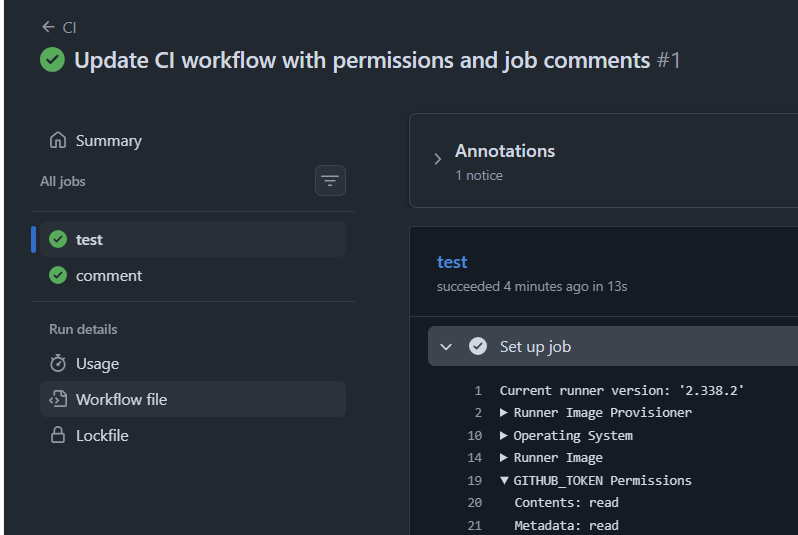
Give extra access to one job only:
When a job needs more, add it to that job instead of the whole workflow:
permissions:
  contents: read             # default for every job

jobs:
  test:
    runs-on: ubuntu-latest
    steps:
      - run: echo "Only needs to read code"

  comment:
    runs-on: ubuntu-latest
    permissions:
      contents: read
      pull-requests: write    # only this job can comment on pull requests
    steps:
      - run: echo "This job can comment on pull requests"
test job with read permission to Contents only:
comment job with read permission to Contents and write permission to Pull Requests:
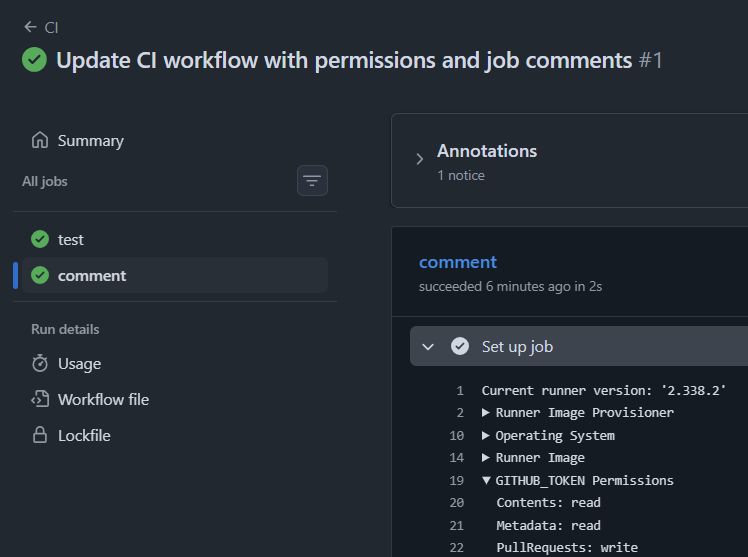
A job-level permissions block replaces the workflow-level one for that job, so repeat contents: read if the job also needs to read code.
The permissions you’ll use most:
| Permission | Lets the token | Typical use |
|---|---|---|
contents |
Read code, or push and create releases (write) |
Checkout, tagging, releases |
pull-requests |
Open, merge, comment or label pull requests | Posting test results |
issues |
Create, edit, comment or label issues | Triage automation |
packages |
Publish to GitHub Packages | Container or npm publishing |
id-token |
Request a short-lived OIDC JWT token to authenticate with cloud providers securely | Passwordless cloud login (Part 4) |
actions |
Manage workflow runs and artifacts | Re-running or cancelling workflows |
Avoid
permissions: write-all. It gives every scope full write access and defeats the point.
Check your repository’s default:
Open Settings → Actions → General → Workflow permissions. Newer repositories and organizations generally default to read-only access, while older ones may still be read-and-write, and organizations can set their own policy. Don’t rely on the default. Declaring permissions in the file means the workflow behaves the same wherever it runs.
While you’re on that page, leave Allow GitHub Actions to create and approve pull requests switched off unless you genuinely need it.
A realistic example:
Here is a small job that comments on a pull request. It uses the GitHub CLI, which is already installed on GitHub’s runners:
pr-comment-job:
    name: Comment on the pull request
    runs-on: windows-latest
    permissions:
     contents: read
     pull-requests: write
    steps:
    - name: Checkout repository
      uses: actions/checkout@v4
      with:
        ref: ${{ github.event.pull_request.head.ref }}
    - name: Post a comment
      env:
        GH_TOKEN: ${{ github.token }}
        PR_NUMBER: ${{ github.event.pull_request.number }}
      run: gh pr comment "$PR_NUMBER" --repo "$GITHUB_REPOSITORY" --body "Lint and tests passed."
If you remove pull-requests: write, this fails with Resource not accessible by integration. That error nearly always means the token is missing a permission, and now you know where to add it.
2. Secrets:
The built-in token covers GitHub. For anything else, such as an API key, a registry token, or a deploy password, we use secrets.
Adding a secret:
In your repository, go to Settings → Secrets and variables → Actions → New repository secret or use can also use the GitHub CLI like below.
gh secret set EXAMPLE_API_KEY
EXAMPLE_API_KEY is just an example name. Call yours whatever makes sense, then use the same name in the workflow. Secret names are case-insensitive, but the convention is uppercase with underscores.
Using gh cli to create a secret:

Secret got created on the repo:

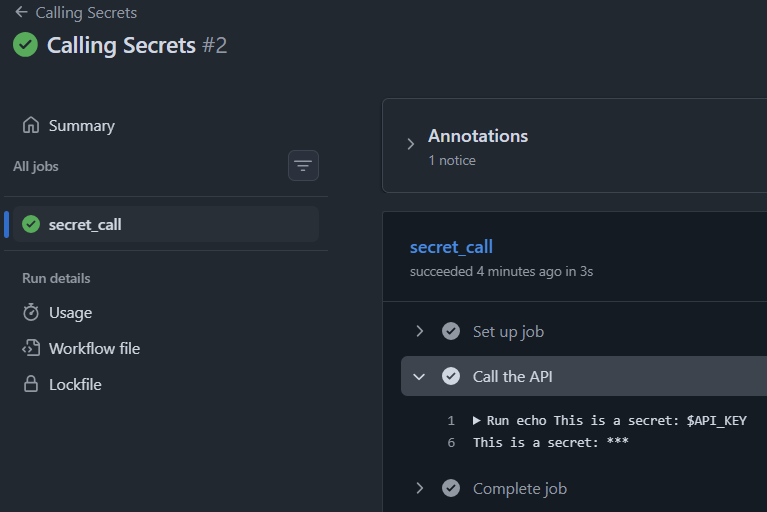
Using a secret:
Pass the secret to the step that needs it, through env:
- name: Call the API
  env:
    API_KEY: ${{ secrets.EXAMPLE_API_KEY }}
  run: "echo This is a secret: $API_KEY"
Scoping the secret to one step matters. If you put it in the workflow-level env, every step, including every third-party action, can read it. The smaller the scope, the smaller the damage if one step is compromised.
| Level | Available to | Good for |
|---|---|---|
| Repository | Any workflow in that repository | Simple projects |
| Environment | Only jobs that target that environment, optionally after an approval | Production credentials |
| Organization | Selected repositories in the organization | Shared tokens |
Rules for handling secrets:
- Never hardcode them in the YAML, the code, or a committed
.envfile. - Don’t print them. GitHub masks known secrets in logs as
***, but masking only works on exact matches. If you encode, split, or reshape a secret, the result may not be masked. - Treat logs as public. On a public repository, anyone can read your logs.
- Don’t use secrets as the first choice. Where possible, use short-lived credentials instead of long-lived passwords.
- Prefer one secret per purpose, with the minimum access the secret needs.
If a secret leaks:
Deleting the commit or the log is not enough, because someone may already have copied it. Do this instead:
- Revoke or rotate the secret at the provider (the cloud console, the registry, the API).
- Create a new one and update it with
gh secret set. - Check usage in the provider’s audit log for anything unexpected.
- Find the cause, so it doesn’t happen again.
3. Untrusted input and untrusted code:
Script injection: In Part 2 we saw that putting text from outside your control directly into a run: script is dangerous. Here's why, with a concrete case. A git branch name can contain characters such as quotes, semicolons, and $(...). If your workflow does this:
# Risky: the branch name is pasted straight into the script
- run: echo "Building branch ${{ github.head_ref }}"
GitHub substitutes the branch name into the script text before the shell runs it. A branch with a name built to break out of the quotes becomes part of your script, and runs with your token and secrets.
The fix is to pass the value through an environment variable. The shell then treats it as plain data:
# Safer: the value arrives as data, not as code
- env:
    BRANCH_NAME: ${{ github.head_ref }}
  run: echo "Building branch $BRANCH_NAME"
The same applies to pull request titles and bodies, issue titles, commit messages, and anything else a person can type.
Two pull request triggers, very different trust:
| Trigger | Runs | Secrets and token |
|---|---|---|
pull_request |
The pull request's code, in the context of the merge result | Read-only token and no secrets for forks |
pull_request_target |
The base branch's workflow, in the base repository's context | Secrets and a read/write token, even for forks |
pull_request_target exists for jobs that need to act on a fork pull request, such as labelling it. The danger is checking out and running the pull request's code inside it:
# DON'T DO THIS
on: pull_request_target

jobs:
  test:
    runs-on: ubuntu-latest
    steps:
      - uses: actions/checkout@v7
        with:
          ref: ${{ github.event.pull_request.head.sha }}   # a stranger's code
      - run: npm ci && npm test                       # now runs with your secrets
This is sometimes called a “pwn request.” The stranger’s code, including any install scripts, runs with access to your secrets and a write token. The safe rule is simple: use pull_request to build and test pull request code, and never check out and run untrusted code under pull_request_target.
Don’t leave credentials behind: By default, actions/checkout stores the job's token in the checked-out repository, so later steps can run git push. If your job never pushes, switch that off:
- uses: actions/checkout@v7
  with:
    persist-credentials: false
It’s one line, and it means the token can’t be swept up by a later step, or accidentally uploaded in an artifact. Use this for testing, linting or building jobs and avoid it if a step requires to run a specific git operation like commit, or any others.
Third-party actions:
Every uses: line runs someone else's code with access to your job. That's powerful and convenient, and it's a trust decision.
Tags can move, commits can’t:
A tag like @v7 is a label that the action's owner can point at different code at any time. A full commit SHA identifies one exact snapshot that can never change.
# Convenient, but the tag can be moved to different code
- uses: actions/checkout@v7

# Fixed to one reviewed version, with a comment so humans can read it
- uses: actions/checkout@3d3c42e5aac5ba805825da76410c181273ba90b1 # v7.0.1
The comment after the SHA isn’t required, but it tells you and your reviewers which version you meant.
Choosing which actions to trust:
- Prefer actions from GitHub (
actions/*) and verified creators, and look at how actively an action is maintained. - Read the source of anything that handles secrets, or that you wouldn’t be able to replace easily.
- Be wary of tiny actions that wrap a one-line command. You can often run that command yourself in a
run:step with no extra dependency. - Under Settings → Actions → General, you can limit which actions are allowed to run, and there’s a checkbox to Require actions to be pinned to a full commit SHA*,* so an unpinned
uses:line fails the workflow. Administrators can also block specific actions.
Latest Capabilities: GitHub’s 2026 security roadmap promises more help here. In October 2026 it released workflow lockfiles in public preview: a .github/workflows/actions.lock file, created with the gh actions-lock extension, that records the exact commit behind each action and its own dependencies. The workflow keeps its readable tag, but runs use the recorded commits even if the tag later moves. The same roadmap lists scoped secrets, policy controls over who can trigger workflows, and a network firewall for GitHub-hosted runners. These are newer features and details can be found here.
4. Finding problems before they find you:
You don’t have to review every workflow by eye. Several tools check automatically:
| Tool | What it does |
|---|---|
| Secret scanning and push protection | Detects credentials in your code and can block a push that contains one (availability depends on your plan) |
| CodeQL for GitHub Actions | Analyses workflow files for script injection, missing permissions, and dangerous inputs. With default setup, it turns on automatically when workflow files are found |
| Dependabot | Keeps action versions current |
Two habits help as well:
- Protect the workflow files. Add a
CODEOWNERSentry for.github/workflows/and require a review on changes. A workflow change is a change to what runs with your secrets. - Think about runners. GitHub-hosted runners start clean for every job. Self-hosted runners don’t, and they’re risky for public repositories.
What changed compared with Part 2, and why:
permissions: contents: readat the top means no job can write anything by default.- Only the
commentjob getspull-requests: write, and it never checks out code at all. - Pinned SHAs protect against a moved tag, and the comments keep them readable.
persist-credentials: falseleaves no token behind in the checkout.- The
ifcondition stops the comment job from failing on fork pull requests, where the token is read-only. - Nothing untrusted is pasted into a
run:script. Values go throughenv.
Common errors and what they mean:
| Symptom | Likely cause | Fix |
|---|---|---|
Resource not accessible by integration |
The token is missing a permission | Add the needed scope to that job's permissions |
| A secret is empty | Wrong name, a fork or Dependabot pull request, or the secret lives in a different environment | Check the spelling and where the secret is defined |
403 when a step runs git push |
The job has no contents: write, or persist-credentials: false removed the credentials |
Add contents: write and keep credentials for that job only |
| A workflow fails with an error about unpinned actions | A policy requires full commit SHAs | Pin the uses: line to a SHA |
A secret can't be used in an if: condition |
The secrets context isn't allowed there |
Copy the value into an env variable first, then test that |
Pipeline security comes down to two habits: give each workflow only the access it needs, and only run code you’ve actually looked at. With your pipeline locked down, you’re ready to ship it somewhere real, which is what Part 4 covers.
What’s next in the series:
Part 1: GitHub Actions fundamentals and your first pipeline.
Part 2: Workflows in depth: triggers, conditions, environment variables, and debugging.
Part 3 (this post): Secrets, permissions, and securing your pipelines.
Part 4: Deployments: environments, approvals, and shipping to the cloud.
Part 5: Advanced patterns: reusable workflows, composite actions, and self-hosted runners.
Find all workflows used in this series on my GitHub Actions: Zero to Production repository.
About the author
- Senior DevOps Engineer @Canarys Automations | GitHub, AWS, Docker, K8s, Terraform, CI/CD | Accelerating infrastructure & automation using AI tools (Copilot, Claude).
Comments
Join the discussionGood coverage of the pull_request_target pitfall. Two additions worth considering: setting the org-level policy to require full-SHA pinning for actions (and letting Dependabot bump the SHAs) removes the 'convenient tag vs. safe SHA' tradeoff, and for deploys, an OIDC-issued short-lived cloud credential bound to a GitHub Environment with required reviewers is usually safer than any stored secret. Also, since a job-level permissions block replaces the workflow one, is there a lint (e.g. zizmor or actionlint) you'd suggest running in CI to catch jobs that silently inherit broader scopes?
Yes using linters in CI pipeline will catch broad inherited permissions.
GitHub Actions - Zero to Production
In this five-part series of posts, I would be sharing hands-on guide to GitHub Actions, from CI/CD fundamentals to production-ready pipelines. Each post pairs clear explanations with examples, so you can build, test, secure, and deploy your projects with confidence.