GitHub Actions for Beginners: Understanding CI/CD and Building Your First Pipeline
Part 1 of 5 in a series that takes you from your first workflow to production-grade automation
Who Checks Your Code Before It Reaches Production?
You finish a feature, run the tests on your laptop, and push to main. Everything passed, so it’s safe to ship.
But here is the question: safe according to whom?
Your system has your Node version, your cached packages, and your environment variables. Production has none of that. The only thing that checked your code was the one machine most likely to agree with you.
If your honest answer is “nobody else,” that is exactly the gap CI/CD fills. Every push gets built and tested automatically on a clean machine, before it can be merged or shipped. No one has to remember to do it.
This series covers how to build that with GitHub Actions, from your first workflow to a production-grade pipeline. Let’s start with what CI/CD actually means.
Firstly, what is CI/CD?
The term gets thrown around as one thing, but it’s really three practices that build on each other.
Continuous Integration (CI) means every code change is automatically built and tested as soon as it’s pushed. Instead of developers working in isolation for days and then merging changes, they merge small changes often, and a machine checks each one.
Continuous Delivery (CD) extends this: every change that passes the checks is automatically packaged and made ready to release. A human is still responsible to ship it.
Continuous Deployment goes one step further and removes the responsibility of shipping. Every change that passes all checks goes to production automatically.
Most teams start with CI, add delivery, and only move to full continuous deployment when their tests are trustworthy enough to rely on.
What a pipeline actually is ── A pipeline is the automated sequence of stages/jobs your code passes through on its way from a commit to production. A typical one looks like this:
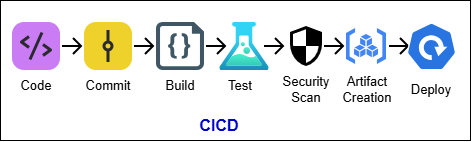
If any stage fails, the pipeline stops and tells you. Bad code never reaches the next stage, and certainly never reaches your users.
Life before and after:
| Without a pipeline | With a pipeline |
|---|---|
| Tests run only if someone remembers | Tests run on every push, automatically |
| "Works on my machine" | Runs on a clean, identical machine every time |
| Releases are manual, stressful events | Releases are routine and repeatable |
| Bugs found days later, by users | Bugs found minutes later, by the pipeline |
| Deployment knowledge lives in one person's head | The process is written down as code |
Where GitHub Actions fits in
CI/CD tools have existed for a long time and there are many of them. One such tool is GitHub Actions.
GitHub Actions is GitHub’s built-in automation platform. You describe what should happen, and when, in a YAML file stored in your repository, and GitHub runs it on a machine it provides. There’s no server to set up unless you need to run self hosted runners which would be covered in later posts, and the pipeline is versioned alongside the code it builds.
It isn’t limited to CI/CD. Anything triggered by an event in your repository can be automated: labeling issues, greeting new contributors, publishing a package when you create a release, running a nightly cleanup job.
How it helps Developers:
Fast feedback on every pull request. You find out your change broke something minutes after pushing.
Confidence to refactor. When tests run automatically, changing code feels less risky.
Less context switching. Results appear right on the pull request. There’s no separate tool to open.
Smaller code reviews. Reviewers can skip “did you run the tests?” and focus on the actual change, because the check mark answers that.
How it helps DevSecOps Engineers:
Pipelines as code. Workflows live in the repo, go through code review, and have a full history in Git. Rolling back a pipeline change is a git revert.
Reusable building blocks. Thousands of ready-made actions in the Marketplace, plus the ability to share your own workflows across repositories.
Built-in secrets and environments. Credentials, approval gates, and deployment targets are managed in one place, with permissions you control.
Flexible runners. Use GitHub-hosted machines (Linux, Windows, and macOS) or your own self-hosted runners when you need special hardware or network access.
The concepts you need to understand:
Everything in Actions comes down to five ideas. Learn these and the documentation starts making sense.
| Concept | What it is |
|---|---|
| Workflow | A YAML file in .github/workflows/ describing an automated process |
| Event | What triggers a workflow (a push, a PR, a schedule) |
| Job | A group of steps that run on the same machine |
| Step | A single command or reusable action inside a job |
| Runner | The machine that executes a job |
Two more terms you’ll see constantly:
Action: a reusable, packaged step someone else wrote (for example, actions/checkout). You use it instead of scripting the same thing yourself.
Artifact: a file produced by a job that you want to keep or pass along, like a test report or build output.
Here’s how they connect:
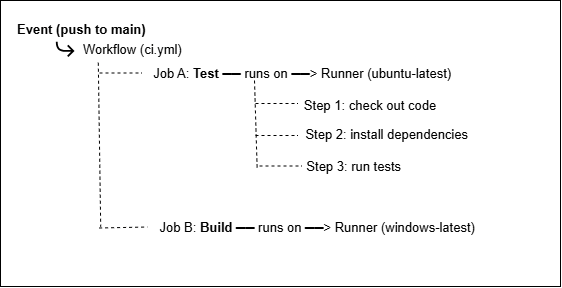
One detail worth knowing early: each job runs on a fresh runner. Jobs don’t share files or installed tools unless you explicitly pass them along using artifacts or caches.
Your first workflow:
I’ll use a Node.js project, but the structure is identical for any language. In your repository, create this file:
.github/workflows/ci.yml
name: My First Workflow

on:
 push:
   branches: [main]
 pull_request:
   branches: [main]

jobs:
 test:
  runs-on: ubuntu-latest
  steps:
   - name: Check out the code
     uses: actions/checkout@v4

   - name: Set up Node.js
     uses: actions/setup-node@v4
     with:
       node-version: 20

   - name: Install dependencies
     run: npm ci

   - name: Run tests
     run: npm test
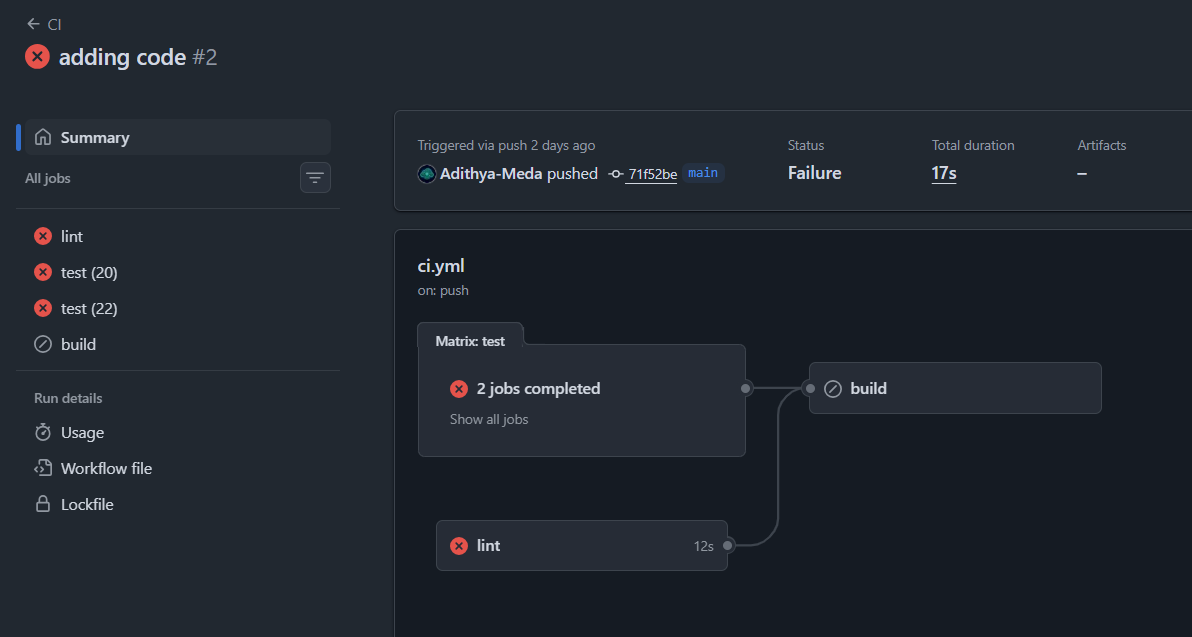
Commit it, push it, and open the Actions tab on your repository. You’ll see the workflow running, with each step expanding to show its logs. Green color: you’re done. Red color: you’ve just found a problem before your users did, which is the entire point.
Failed Pipeline:
Successful Pipeline:
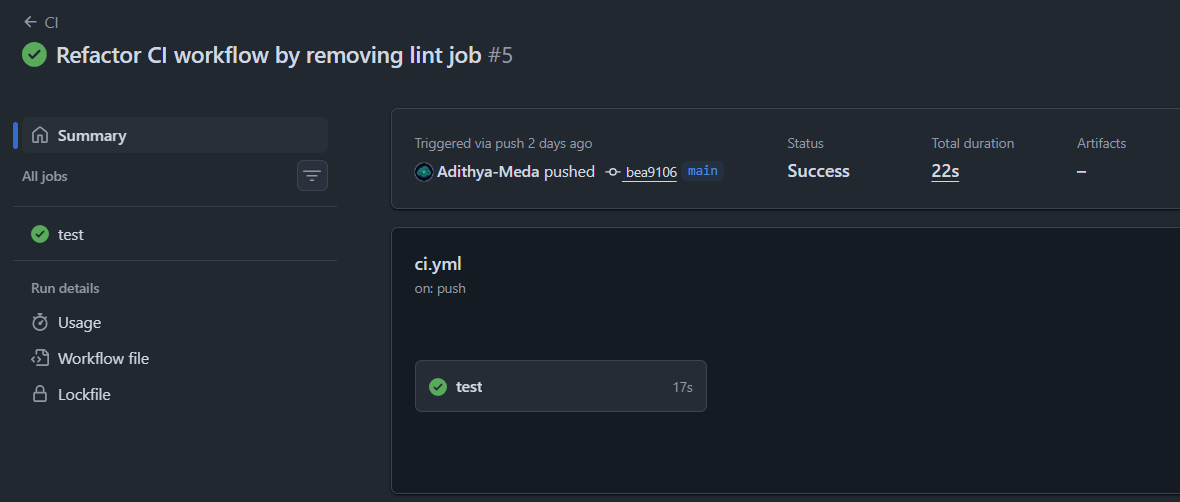
Reading it line by line:
on: says when to run. This workflow runs on pushes to main and on pull requests targeting main.
runs-on: ubuntu-latest picks a GitHub-hosted Linux machine. Windows and macOS runners are available too.
uses: actions/checkout@v4 is a prebuilt action that clones your repo onto the runner. Without it, the runner has an empty workspace.
run: executes a shell command, the same one you’d type in a terminal.
A more realistic pipeline:
One job is fine for a demo. Real projects usually want linting, tests, and a build, with the build happening only if the earlier checks pass.
name: Dependent Jobs Workflow

on:
 push:
   branches: [main]
 pull_request:
   branches: [main]

jobs:
  lint:
    runs-on: ubuntu-latest
    steps:
      - uses: actions/checkout@v4
      - uses: actions/setup-node@v4
        with:
          node-version: 20
      - run: npm ci
      - run: npm run lint

  test:
    runs-on: ubuntu-latest
    steps:
      - uses: actions/checkout@v4
      - uses: actions/setup-node@v4
        with:
          node-version: 20
      - run: npm ci
      - run: npm test

  build:
    runs-on: ubuntu-latest
    needs: [lint, test]
    steps:
      - uses: actions/checkout@v4
      - uses: actions/setup-node@v4
        with:
          node-version: 20
      - run: npm ci
      - run: npm run build
      - uses: actions/upload-artifact@v4
        with:
          name: dist
          path: dist/
Two things to notice. lint and test jobs run in parallel because neither depends on the other, which is a free speedup. And needs: [lint, test] makes build wait for both, so you never build code that failed its checks.
Making your pipeline faster:
Caching dependencies: The problem. Every job starts on a clean machine. That means every run downloads and installs all your dependencies from scratch, even though they haven’t changed since the last run. For a project with a few hundred packages, that’s often the slowest part of the whole pipeline, and it’s pure repetition.
What caching does. A cache saves a folder at the end of one run and restores it at the start of the next. Instead of downloading everything again, the runner pulls it from GitHub’s cache storage, which is much faster. Many setup actions have inbuilt caching like below and some may require manual setup where you hold the control.
- uses: actions/setup-node@v4
  with:
    node-version: 20
    cache: npm
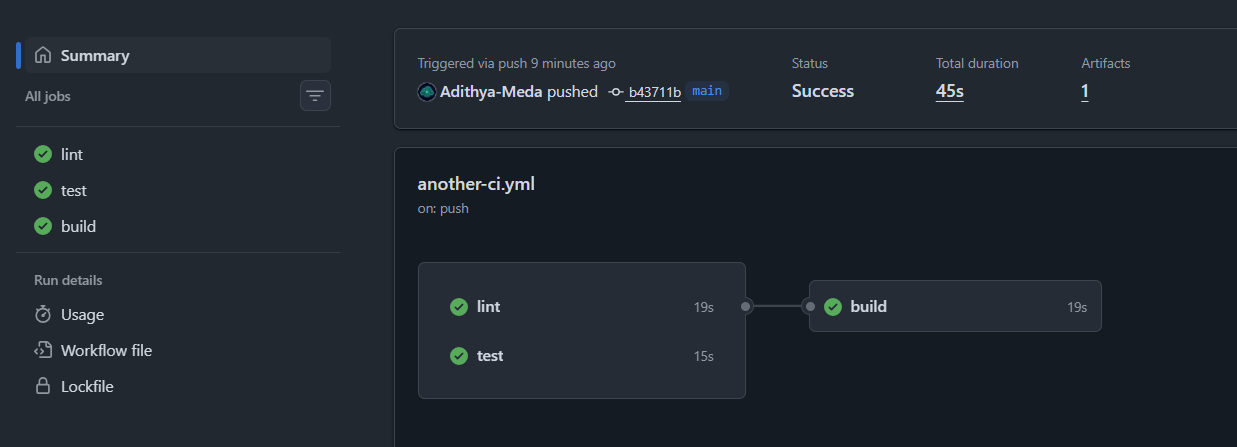
Before Caching: Pipeline run time is 45 seconds.
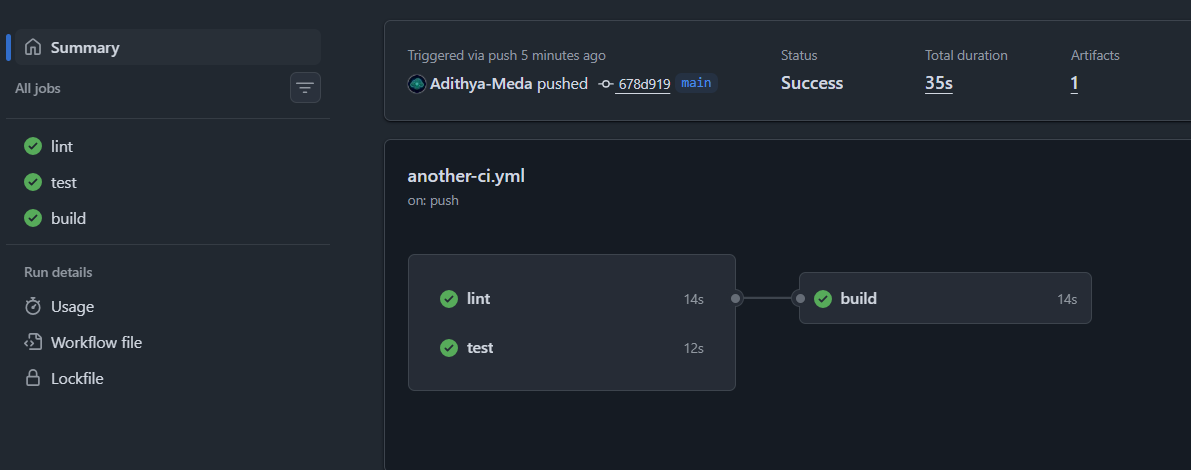
After Caching: Pipeline run time is 35 seconds, but note that in the real environments you would see a significant reduction in the run time.
Matrix Builds: The problem. Your code probably needs to work in more than one environment: Node 18, 20, and 22, or Linux, Windows. Copying the same job three or four times is tedious and error-prone.
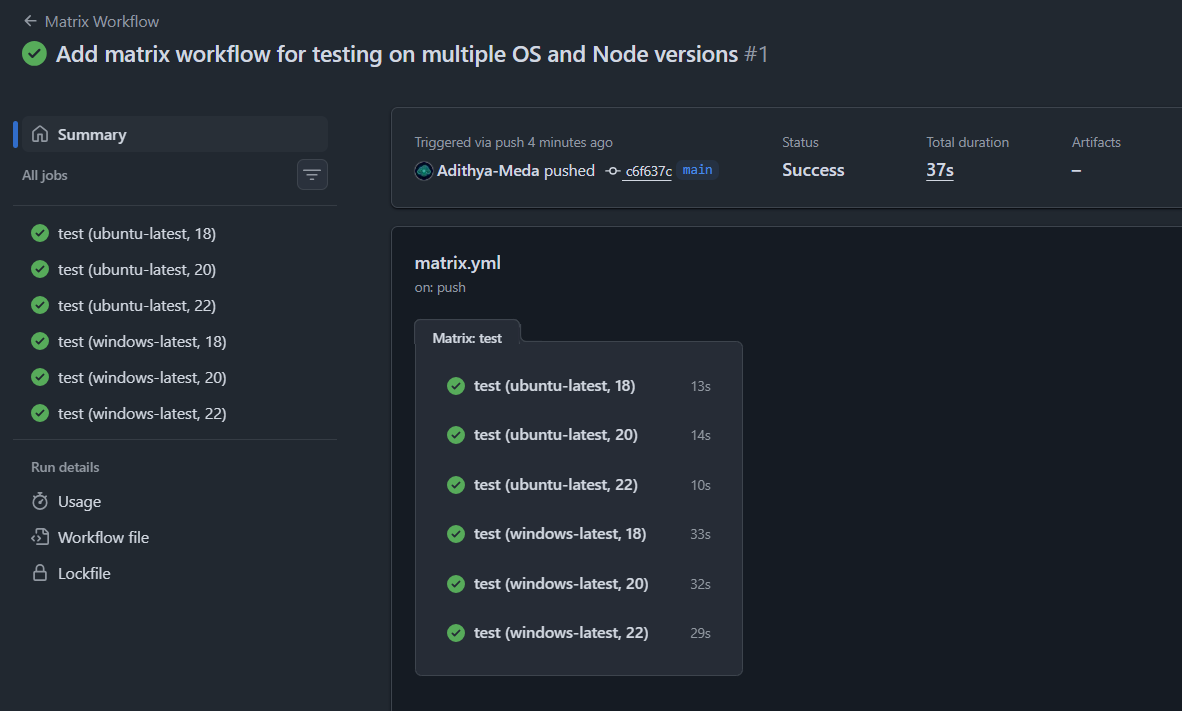
What a matrix does. You write the job once and tell Actions which values to vary. It then creates one job per combination, and runs them in parallel.
jobs:
  test:
    runs-on: ${{ matrix.os }}
    strategy:
      matrix:
        os: [ubuntu-latest, windows-latest]
        node-version: [18, 20, 22]
    steps:
      - uses: actions/checkout@v4
      - uses: actions/setup-node@v4
        with:
          node-version: ${{ matrix.node-version }}
          cache: npm
      - run: npm ci
      - run: npm test
Two operating systems times three Node versions gives six jobs from one definition. Inside the job, ${{ matrix.os }} and ${{ matrix.node-version }} hold the values for that particular run. In the Actions tab, each combination shows up as its own entry, so a failure tells you exactly which environment broke.
When not to use it. A matrix multiplies your runner minutes. Six jobs cost roughly six times one job. Use it where compatibility genuinely matters (libraries, CLIs), and skip it for an internal app that only ever runs in one environment.
After using this for a while, the benefits I notice most are practical rather than fancy.
Consistency- The same steps run the same way every time, on a clean machine.
Fast feedback- You learn about a broken test minutes after pushing.
Safer merging- You can require checks to pass before a pull request can be merged, so main branch stays healthy.
No extra infrastructure- The pipeline lives in your repo and is versioned with your code.
A huge ecosystem- The Marketplace has thousands of ready-made actions, so you rarely script anything from scratch.
Cost-friendly- Public repositories get free usage, and private ones get a monthly allowance of minutes.
Common first-timer mistakes:
Wrong file location- The file must be in
.github/workflows/and end in.ymlor.yaml.Wrong indentation- YAML is whitespace-sensitive. Two spaces versus four can break things quietly.
Forgetting actions/checkout- Your commands then run in an empty folder.
Expecting jobs to share files- Each job gets a fresh runner. Use artifacts or caches to pass data between them.
Hardcoding secrets in the YAML- Never do this. Use repository secrets, which Part 3 covers properly.
What’s next in the series:
Part 1 (this post): GitHub Actions fundamentals and your first pipeline.
Part 2: Workflows in depth: triggers, conditions, environment variables, and debugging.
Part 3: Secrets, permissions, and securing your pipelines.
Part 4: Deployments: environments, approvals, and shipping to the cloud.
Part 5: Advanced patterns: reusable workflows, composite actions, and self-hosted runners.
About the author
- Sr. DevOps & Cloud Engineer | GitHub, AWS, Docker, K8s, Terraform, CI/CD | Accelerating infrastructure & automation using AI tools (Copilot, Claude).
Comments
Join the discussionNo comments yet. Be the first to comment.
GitHub Actions - Zero to Production
In this five-part series of posts, I would be sharing hands-on guide to GitHub Actions, from CI/CD fundamentals to production-ready pipelines. Each post pairs clear explanations with examples, so you can build, test, secure, and deploy your projects with confidence.