GitHub Actions for Beginners: Understanding Triggers, Conditions, Variables and Debugging Your Workflows
Part 2 of 5 in a series that takes you from your first workflow to production-grade automation
Is your pipeline running only when it should?
In Part 1 we built a pipeline that lints, tests, and builds on every push. That’s a good start, but a pipeline that runs on everything isn’t really required all the times.
Getting it right means answering four questions about every workflow:
- When should it run? That’s what triggers control.
- Should this job or step run at all? That’s what conditions decide.
- What values do the steps work with, and how do they share them? That’s variables and outputs.
- What do I do when its not working? That’s debugging.
This post answers each one with working examples. By the end, you’ll have upgraded the Part 1 pipeline so it runs only when it needs to, and you’ll know how to troubleshoot if something is wrong.
1. Triggers: when does a workflow run?
Everything under the on: key is a trigger. A workflow can listen to one event or several.
The events we will use most:
| Event | Runs when |
|---|---|
push |
Commits are pushed to a branch or tag |
pull_request |
A PR is opened, updated, or reopened |
workflow_dispatch |
Someone triggers it manually |
schedule |
you save the slot |
release |
A GitHub release is created or published |
workflow_call |
Another workflow calls this one |
workflow_run |
Another workflow finishes |
There are many more, including events for issues, comments, and labels, which is what makes Actions useful for repository automation as well as CI.
Filtering by branch, tag, and path:
Without filters, push runs for every branch. Usually not necessary in most of the cases:
on:
  push:
    branches: [main]
    paths-ignore:
      - '**.md'
      - 'docs/**'
  pull_request:
    branches: [main]
    paths-ignore:
      - '**.md'
      - 'docs/**'
Understanding the above yaml snippet: The workflow triggers on commit and PRs targeting main branch only, any updates to those specific files and folders mentioned under inbuilt keyword paths-ignore will not trigger the workflow run.
A few rules to know:
- You can’t use
pathsandpaths-ignorefor the same event. Pick one or use!withpaths. The same goes forbranches, tagsandbranches-ignore, tags-ignore. - Patterns use globs.
*matches within one folder level, and**matches across folders. - Quote patterns that start with
*, or YAML will try to read them as something else. - Filters are case-sensitive on Linux runners.
To trigger on release tags like v1.4.2:
on:
  push:
    tags:
      - 'v*.*.*'
Pull request activity types:
By default, pull_request runs when a PR is opened, synchronized (new commits pushed), or reopened. You can add more types when you need them:
on:
  pull_request:
    types: [opened, synchronize, reopened]
Running a workflow manually:
workflow_dispatch adds a "Run workflow" button to the Actions tab and lets you ask for inputs:
on:
  workflow_dispatch:
    inputs:
      environment:
        description: Where should this run?
        type: choice
        options: [staging, production]
        default: staging
      verbose:
        description: Print extra logs
        type: boolean
        default: false
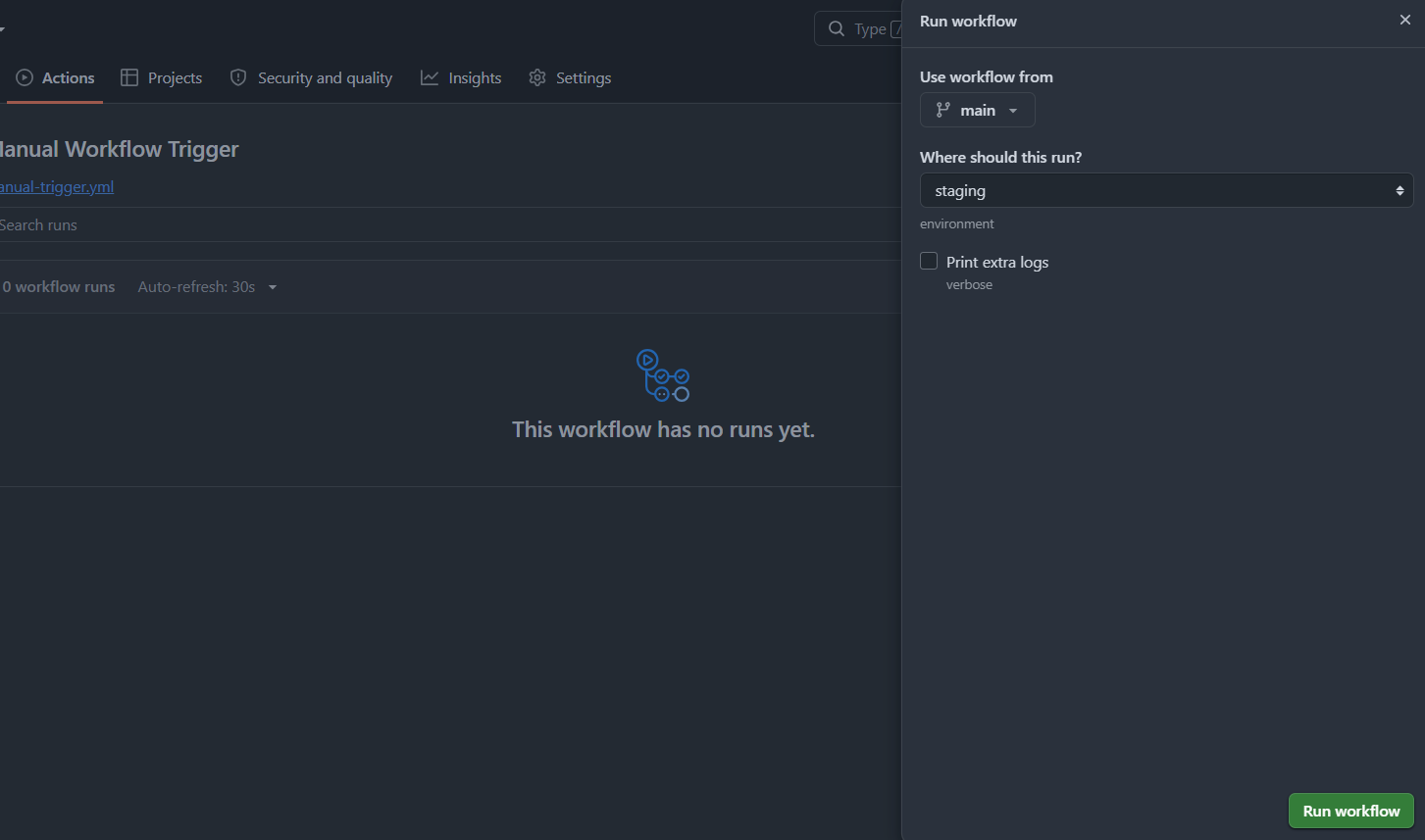
One catch: the button only shows up once the workflow file exists on your default branch.
Running on a schedule:
on:
  schedule:
    - cron: '0 6 * * 1'   # every Monday at 06:00 UTC
The five fields are minute, hour, day of month, month, and day of week.
2. Conditions: should this job or step run?
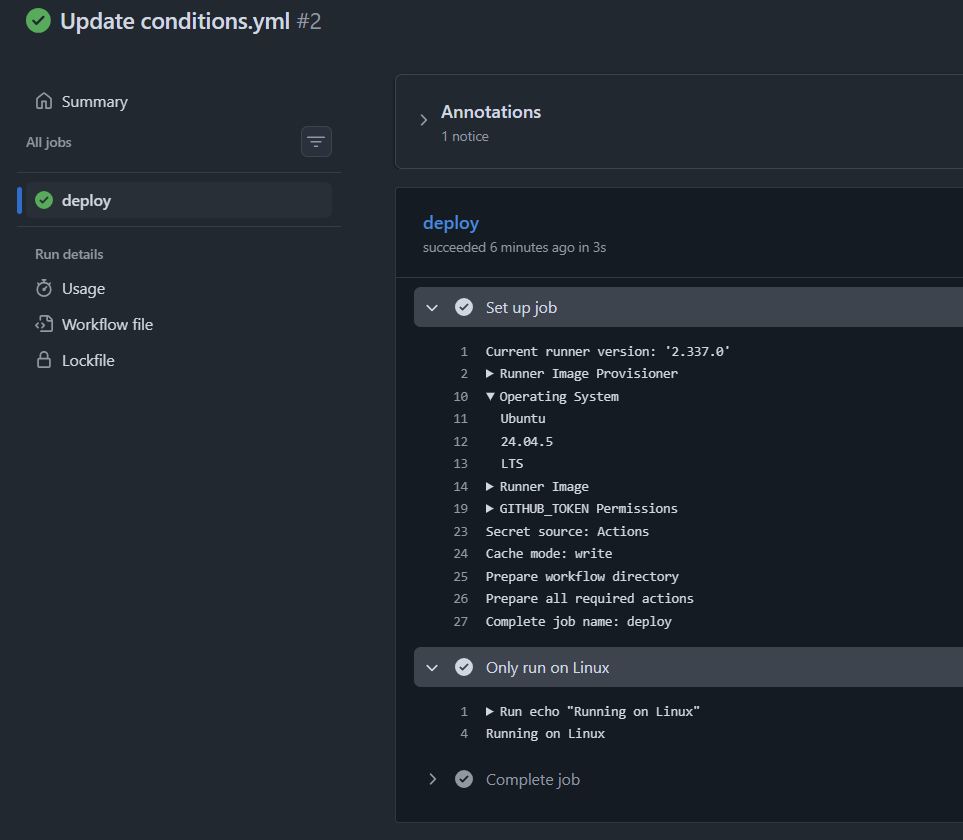
Triggers decide whether the workflow starts. The if key then decides whether an individual job or step runs. In the below case, the first if says execute the job only when the main branch is committed and second if says execute if it’s a Linux runner.
jobs:
  deploy:
    if: github.ref == 'refs/heads/main' && github.event_name == 'push'
    runs-on: ubuntu-latest
    steps:
      - name: Only run on Linux
        if: runner.os == 'Linux'
        run: echo "Running on Linux"
Job execution is skipped as it didn’t meet the defined conditions
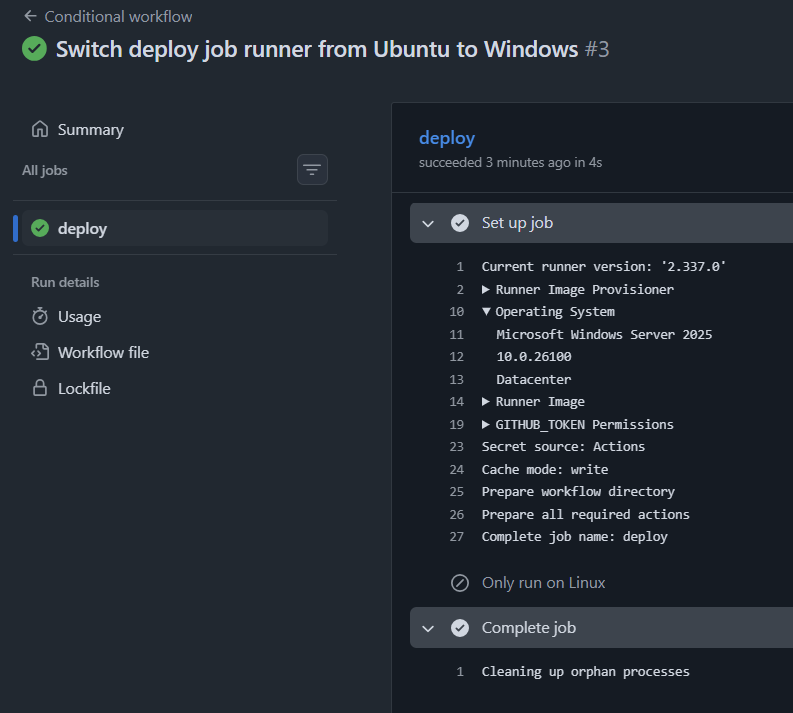
Job execution is successful as the required conditions are met
Status functions:
By default every step has an invisible if: success(), meaning "run only if everything before passed." You can change that:
| Function | True when |
|---|---|
success() |
All previous steps passed (the default) |
failure() |
Any previous step failed |
always() |
Always, even if the run was cancelled |
cancelled() |
The run was cancelled |
Here's a pattern you'll use constantly, running cleanup or a report even when the tests fail:
steps:
  - name: Run tests
    run: npm test

  - name: Runs only if tests pass
    run: echo "All tests passed"

  - name: Runs only if something failed
    if: failure()
    run: echo "Something failed, check the logs above"

  - name: Runs no matter what
    if: always()
    run: echo "Finished, whatever the result"
3. Variables and data: env, vars, secrets, and outputs
There are three ways to give a workflow configuration, and they're easy to mix up.
| Mechanism | Defined | Read with | Use for |
|---|---|---|---|
env |
In the YAML itself | ${{ env.NAME }} |
Values that belong in the workflow file |
vars |
In repository, environment, or organization settings | ${{ vars.NAME }} |
Non-sensitive information |
secrets |
In repository, environment, or organization settings, stored encrypted | ${{ secrets.NAME }} |
Sensitive information |
env can be set at three levels, and the closest one wins:
env:
  APP_ENV: ci                            # at workflow level

jobs:
  test:
    runs-on: ubuntu-latest
    env:
      LOG_LEVEL: info                    # at job level
    steps:
      - name: Run tests
        env:
          API_URL: ${{ vars.API_URL }}   # at step level
        run: npm test
GitHub supports both default variables as mentioned below and custom variables (using env and var):
- name: Show run info
  run: |
    echo "Commit:  $GITHUB_SHA"
    echo "Branch:  $GITHUB_REF_NAME"
    echo "Actor:   $GITHUB_ACTOR"
    echo "Run #:   $GITHUB_RUN_NUMBER"
    echo "Runner:  $RUNNER_OS"
    echo "CI flag: $CI"
Passing data between steps and jobs:
In certain scenarios you may need the output from one step to be passed onto another in the same job or across different jobs, let’s see how we can achieve it.
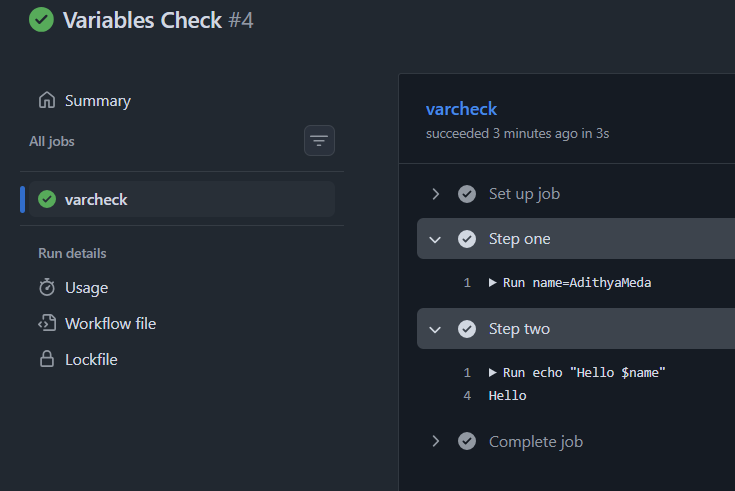
Across steps in the same job: For every run, a step starts in a fresh shell. A variable you set in one step is gone by the next:
steps:
  - name: Step one
    run: name=Adithya Meda

  - name: Step two
    run: echo "Hello $name"    # prints "Hello " because the variable is empty
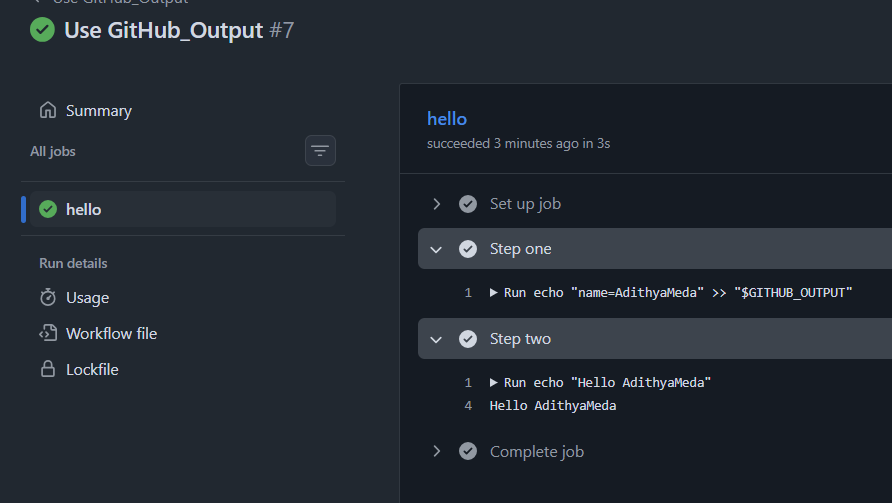
To pass a value to a later step, write it to a default key $GITHUB_OUTPUT, then read it back by the step’s id:
steps:
  - name: Step one
    id: one
    run: echo "name=Adithya Meda" >> "$GITHUB_OUTPUT"

  - name: Step two
    run: echo "Hello ${{ steps.one.outputs.name }}"   # prints "Hello AdithyaMeda"
How to define:
- Give the first step an
id. - Write
<output name>=<value>to$GITHUB_OUTPUT. - Read it later with
steps.<id>.outputs.<output name>.
Across different jobs:
jobs:
  job-one:
    runs-on: ubuntu-latest
    outputs:
      name: ${{ steps.one.outputs.name }}
    steps:
      - id: one
        run: echo "name=AdithyaMeda" >> "$GITHUB_OUTPUT"

  job-two:
    needs: job-one
    runs-on: ubuntu-latest
    steps:
      - run: echo "Hello ${{ needs.job-one.outputs.name }}"
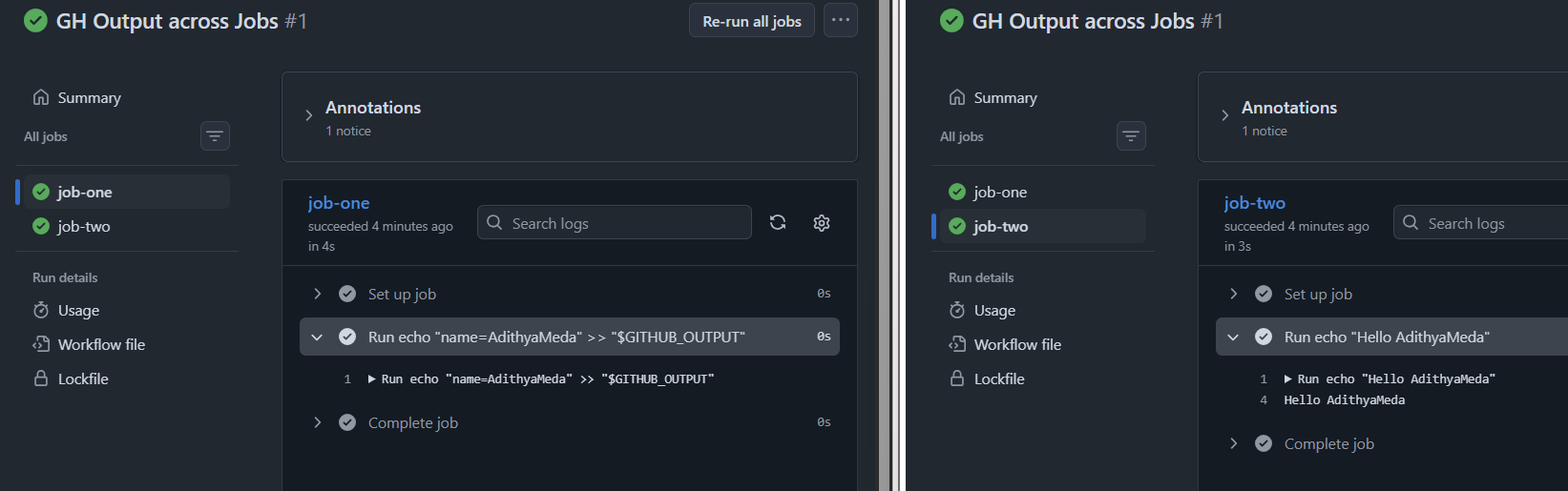
The key difference to notice is that when passing output within the same job we use steps. and across the jobs, we use needs.
Defaults, timeouts, and failure handling:
A few settings that make workflows more predictable:
defaults:
  run:
    shell: bash
    working-directory: ./app

jobs:
  test:
    runs-on: ubuntu-latest
    timeout-minutes: 10
    steps:
      - name: Experimental check
        continue-on-error: true
        run: npm run experimental-check
timeout-minutesmatters more than it looks. The default job timeout is 360 minutes, so a hung process can quietly burn six hours of runner time. Set something realistic.continue-on-error: truelets a step or job fail without failing the run. Good for experimental checks, but not for production systems.defaultskeyword defines fallback execution settings (like shell or working-directory) at the workflow or job level.
4. Debugging: when something goes wrong
Why isn’t my workflow running?
- Wrong location or extension. It must live in
.github/workflows/and end in.ymlor.yaml. - Invalid YAML. Syntax errors in the workflow files. One bad indent is enough.
- Filters excluded it. Check
branches,tags, andpathsagainst what you actually pushed. - Default branch rule.
scheduleand the manual "Run workflow" button need the file on the default branch. - A commit message skipped it.
[skip ci]or[ci skip]in a commit message skipspushandpull_requestworkflows for that commit. - Actions is disabled for the repository until the owner enables it.
Some debugging actions to consider:
- Start with the logs: If everything is fine and your workflow runs and fails due to other reasons, open the failed run, click the failed job, and look for the red step. Each step is collapsible, and you can search within the log using the search box at the top.
- Turn on debug logging: When the normal log isn’t enough, do this: On a failed run, click Re-run failed jobs and tick Enable debug logging. This is the easiest route or set
ACTIONS_STEP_DEBUGtotrueas a repository secret or variable to get verbose step output on every run.ACTIONS_RUNNER_DEBUGdoes the same for runner diagnostics. - Make your own logs readable: Workflow commands let you format output and raise annotations that show up directly on the run and the pull request:
- name: Check things
  run: |
    echo "::group::Environment details"
    node --version
    npm --version
    echo "::endgroup::"
    echo "::notice::Using Node $(node --version)"
    echo "::warning file=src/app.js,line=12::Consider validating this input"
    echo "::error file=src/app.js,line=20::This will break on Windows"
::group:: collapses noisy output, and ::error, ::warning, and ::notice appear as annotations. Adding file and line pins them to a specific line in the diff.
Common symptoms and likely causes:
| Symptom | Likely cause |
|---|---|
| Workflow never appears | Wrong folder, invalid YAML, or not on the default branch |
| A job is "skipped" and a dependent job too | A needs job was skipped or failed, or the if was false |
| Step passes locally, fails in CI | Different Node or OS version, missing env var, or a missing/wrong commands |
Resource not accessible by integration |
The GITHUB_TOKEN lacks a permission (Part 3) |
A paths filter blocks a required check |
The workflow was skipped, so the check never reported |
Most broken pipelines come from small mistakes, like a filter that’s not properly applied or a value that never reached the next step.
What's next in the series:
Part 1: GitHub Actions fundamentals and your first pipeline.
Part 2 (this post): Workflows in depth: triggers, conditions, environment variables, and debugging.
Part 3: Secrets, permissions, and securing your pipelines.
Part 4: Deployments: environments, approvals, and shipping to the cloud.
Part 5: Advanced patterns: reusable workflows, composite actions, and self-hosted runners.
Find all workflows used in this series on my GitHub Actions: Zero to Production repository.
About the author
- Senior DevOps Engineer @Canarys Automations | GitHub, AWS, Docker, K8s, Terraform, CI/CD | Accelerating infrastructure & automation using AI tools (Copilot, Claude).
Comments
Join the discussionNo comments yet. Be the first to comment.
GitHub Actions - Zero to Production
In this five-part series of posts, I would be sharing hands-on guide to GitHub Actions, from CI/CD fundamentals to production-ready pipelines. Each post pairs clear explanations with examples, so you can build, test, secure, and deploy your projects with confidence.